
In this article
- When to use radio buttons (and when not to)
- Variants or option fields: which do you need?
- How to add radio buttons with PIMW Product Personalizer
- Assign the radio buttons to your products
- Charging extra for a radio button choice
- Show radio buttons only when they're needed
- Can you add radio buttons without an app?
- Radio button ideas that sell
- Mistakes to avoid
- Which plan do you need?
- Your radio button checklist
- Frequently asked questions
- Keep exploring
To add radio buttons to a Shopify product page, use a product options app. In PIMW Product Personalizer, create an option set, click Add Field, choose Radio Buttons, type your choices (for example Small, Medium, Large), add a price to any choice that costs more, save, click Assign to pick the products, and add the Product Options block to your product template. It takes a few minutes and no code. If the choice changes your stock, like a size you keep in inventory, use Shopify's own variants instead; Dawn can show them as buttons.
Radio buttons are one of the simplest fields you can add, and one of the most useful. They show every choice at once, so customers compare and pick without opening a menu. This guide covers when to use them, the exact setup in PIMW Product Personalizer with screenshots from the app, how to charge more for some choices, and the mistakes to avoid.
Key takeaways
- Use radio buttons for one choice from a short list; dropdowns for long lists, checkboxes for yes/no extras.
- Use Shopify variants when a choice has its own stock; use option fields for everything else.
- In PIMW Product Personalizer: Create Option Set, Add Field, Radio Buttons, add choices and prices, save, click Assign, add the Product Options block.
- Show prices on paid choices (e.g. Large +$4.99), make the field required or set a default, and test an order.
When to use radio buttons (and when not to)
Radio buttons are for choosing exactly one option from a short list. The Nielsen Norman Group, the user-experience research firm, puts it simply: radio buttons are used when there's a list of two or more options that are mutually exclusive. Checkboxes are for picking any number of options.
| Field type | Use it when | Example |
|---|---|---|
| Radio buttons | One choice from 2 to about 6 options that customers should compare | Size, gift box style, print side, finish |
| Dropdown | Long lists where showing everything would clutter the page | Font list, 20 thread colors, countries |
| Checkbox | A yes/no extra | Gift wrap +$4, rush delivery |
| Color or image swatches | Choices that are easiest to judge by sight | Colors, frame styles, patterns |
A few practical rules:
- Keep it short. Radio buttons shine with a handful of choices. For long lists, a dropdown keeps the page tidy, as our guide to dropdown options explains.
- Show the price on the choice. "Large +$4.99" next to the option answers the question before the customer has to ask it.
- Pick a sensible default when one exists. The Nielsen Norman Group recommends always offering a default selection for radio button lists. For something like size, where there's no safe default, make the field required instead so customers have to choose.
- One choice per line. The same research suggests laying lists out vertically, with one choice per line, which is easy to scan on a phone.
For yes/no extras, see our guide to checkbox options, and for colors, our guide to color options and swatches.
Variants or option fields: which do you need?
Shopify gives you two ways to offer a choice, and they suit different jobs.
- Variants are Shopify's built-in options. Use them when each choice is a real product version with its own stock, SKU or base price, like a t-shirt you hold in S, M and L. Shopify allows 3 options and up to 2,048 variants per product, and in Dawn the variant picker block has a Type setting that shows variants as buttons or as a dropdown.
- Option fields from an app are for choices that don't need their own stock: a gift box style, a finish, "print on the front or back", or a size that only changes the price of a made-to-order product. They don't create variants, so they don't use up your three options.
If you're unsure, our explainer on the difference between Shopify options and variants walks through more examples, and our guide to adding more than 3 options covers what to do when you run out.
How to add radio buttons with PIMW Product Personalizer

Here is the setup in PIMW Product Personalizer, step by step.
1. Install the app and enable the app embed. Install PIMW Product Personalizer from the Shopify App Store. Then, in your Shopify admin, go to Online Store > Themes > Customize, click App embeds, switch on PIMW Product Personalizer and save. Nothing will show on your store until the embed is on.
2. Create an option set. In the app, go to Options and click Create New. You'll see the Create Option Set screen. Give the set a clear name, like "Mug sizes" or "Gift box options".
3. Add a Radio Buttons field. In the Fields area, click Add Field (or Add First Field) and choose Radio Buttons from the list. The same menu also has checkboxes, checkbox groups, single and multi dropdowns, color and image swatches, text fields and text areas.
4. Set up the field. Give it a name customers will understand ("Size"), a short description ("Select your preferred size"), and switch on Required if every order needs an answer. You can also add a tooltip or an image to explain the choice.
5. Add your choices and prices. Add each choice (Small, Medium, Large) and set a price for the ones that cost more, for example Medium +$2.99 and Large +$4.99. Drag the choices into the order you want them shown.
6. Save the option set and make sure its status is Active. You can also save it as a draft while you're still working on it.
Assign the radio buttons to your products

Once the option set is saved, connect it to products and put it on your product page.
7. Assign it to your products. In your list of option sets, click Assign next to the set and pick the products that should show these radio buttons. One option set can be assigned to many products, so you set it up once.
8. Add the Product Options block to your product template. In the theme editor, open your product template, click Add block, choose Product Options under PIMW Product Personalizer, and place it near the Add to cart button.
9. Test it. Open a product on your store, pick a choice, add it to the cart and check the price and the selected option. Then place a test order and check the choice appears on the order.
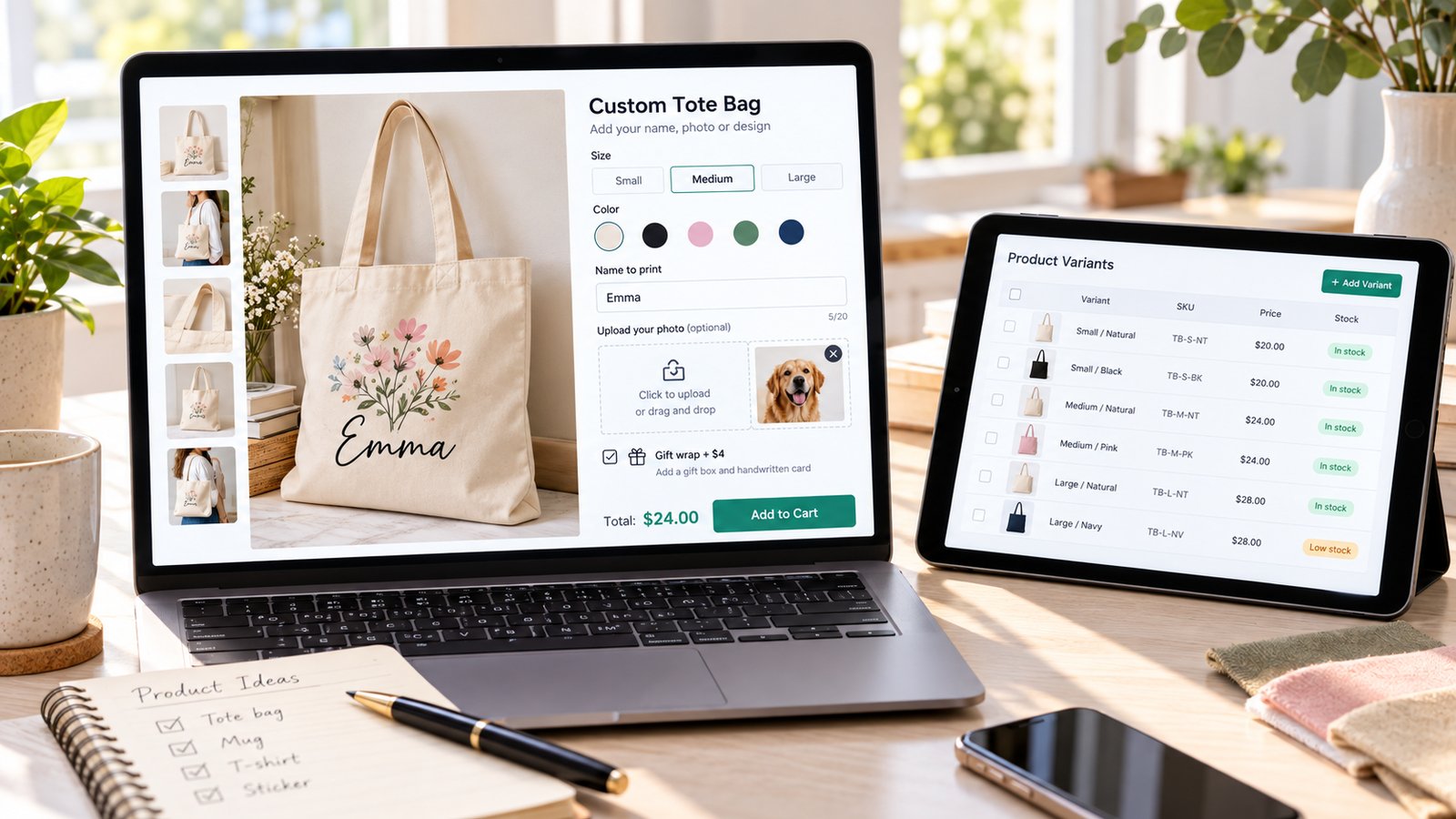
That's it: your customers now see clean radio buttons with the extra price shown next to each choice, exactly like the example at the top of this guide.
Charging extra for a radio button choice
Per-choice pricing is where radio buttons start making you money. A bigger size, a premium gift box or a second print side can each carry its own price.
- Set it on the choice. In PIMW Product Personalizer, each choice can have its own price, such as "Gold foil +$5" or "Large +$4.99".
- One-time setup: create the fee product from the app's Dashboard ("Create Fee Product"). Prices for options won't apply until this is active.
- What customers see: the price updates as they choose, and in the cart the product and the add-on fee show as one line, with the fee shown as a detail. This runs on Shopify's Cart Transform.
Our guide to per-option pricing goes deeper, and our guide to adding a gift wrap option shows a common example.
Show radio buttons only when they're needed
Sometimes a choice only matters after another one. With conditional logic (on the Pro and Unlimited plans), you can show a radio button field only when a previous choice is made: for example, show "Gift box style" (Classic, Premium, Wooden) only after the customer switches on "Add a gift box". The page stays short for everyone who doesn't need it.
Can you add radio buttons without an app?
Yes, with theme code, but it's limited. Shopify's line item properties let you add inputs named properties[...] inside the product form, and a radio button group looks like this:
<fieldset>
  <legend>Gift box</legend>
  <label><input type="radio" name="properties[Gift box]" value="Classic" checked> Classic</label>
  <label><input type="radio" name="properties[Gift box]" value="Premium"> Premium</label>
</fieldset>
What you get: the customer's choice is saved on the order. What you don't get: an extra charge for a choice, conditional fields, a required check on the cart, or anything you can manage without editing code again. For a store selling more than one or two products, an options app is much less work. Our guide to adding product options in Shopify compares the methods side by side.
Radio button ideas that sell
- Size or capacity for made-to-order products: 11 oz or 15 oz mug, small or large print.
- Gift box style: None, Classic, Premium (+$4).
- Print side: Front only, Front and back (+$5).
- Finish or material: Matte, Glossy, Wood (+$8).
- Delivery speed: Standard, Express (+$10).
- Font style when you offer only three or four fonts.
Mistakes to avoid
- Too many choices. More than about six radio buttons gets long on a phone; switch to a dropdown.
- Hidden prices. Always show "+$" on paid choices.
- Using variants for everything. Choices that don't need stock belong in option fields, so you keep Shopify's three variant options for size, color and material.
- Forgetting the app embed or the block. If the radio buttons don't show, check the app embed is on, the Product Options block is in the template, the option set is assigned to the product and its status is Active.
- Not testing the cart. Place a test order to check the price and the choice come through.
Which plan do you need?
Radio buttons are available on every PIMW Product Personalizer plan. The Free plan includes 1 option group with 2 fields on up to 10 products, which is enough to try it on a couple of products. Basic ($7.99 a month) gives you 10 option groups with 8 fields each on up to 50 products, Pro ($13.99) adds conditional logic with 30 option groups, and Unlimited ($24.99) removes the limits. Every plan has unlimited custom orders and no per-order fees.
If you're comparing apps, our ranking of the best product personalizer apps for Shopify covers ten options, and our PIMW Product Personalizer documentation (in English) has every setting.
Your radio button checklist
- Decide whether the choice needs its own stock (use variants) or not (use an option field).
- Keep the list to a handful of choices, one per line.
- Name the field clearly and add a short description.
- Make it required, or set a sensible default.
- Add prices to paid choices and show them on the option.
- Save, set Active and click Assign to pick your products.
- Add the Product Options block to your product template.
- Place a test order.
Radio buttons are a small detail, but they're often the difference between a customer guessing and a customer choosing with confidence. Set them up once, and every product that uses them gets a cleaner, faster page.
Frequently asked questions
How do I add radio buttons to a Shopify product page?
Use a product options app. In PIMW Product Personalizer, create an option set, click Add Field, choose Radio Buttons, add your choices and any prices, save, click Assign to pick products, and add the Product Options block to your product template.
Can I charge extra for a radio button option in Shopify?
Yes. In PIMW Product Personalizer each choice can have its own price, like Large +$4.99. Create the fee product from the app's Dashboard once, and the add-on price is added to the cart through Shopify's Cart Transform.
Should I use radio buttons or a dropdown?
Radio buttons for one choice from a short list customers should compare, like sizes or gift box styles. Dropdowns for long lists. The Nielsen Norman Group notes that long dropdowns make it impossible to see all choices at a glance.
Are radio buttons the same as Shopify variants?
No. Variants are Shopify's built-in options with their own stock and SKU, and Dawn can show them as buttons. App radio buttons are option fields for choices that don't need their own stock, and they don't use up Shopify's three variant options.
Can I add radio buttons to Shopify without an app?
Yes, with inputs named properties[...] inside your theme's product form. The choice is saved on the order, but you can't charge extra, show fields conditionally or manage options without editing code.
Do I need a paid plan for radio buttons in PIMW Product Personalizer?
No. Radio buttons work on every plan. The Free plan includes 1 option group with 2 fields on up to 10 products; Basic, Pro and Unlimited raise the limits, and Pro adds conditional logic.
Keep exploring
Sources & further reading
Primary sources referenced in this article. We link to official platform documentation and standards bodies rather than secondary summaries so you can verify claims directly.