
In this article
- Two kinds of "upload image" on Shopify
- How to upload product images to Shopify (for merchants)
- Ways to let customers upload images on product pages
- The no-app method: a file field in your theme
- How image upload works in PIMW Product Personalizer
- Step by step: add image upload with PIMW Product Personalizer
- Charging for photo and logo uploads
- Show the upload only when customers want it
- PIMW Product Personalizer plans for image upload
- Use cases: products that sell with image upload
- Photo quality: get files that print well
- Privacy and copyright for customer uploads
- Troubleshooting image upload
- Your Shopify image upload checklist
- Frequently asked questions
- Keep exploring
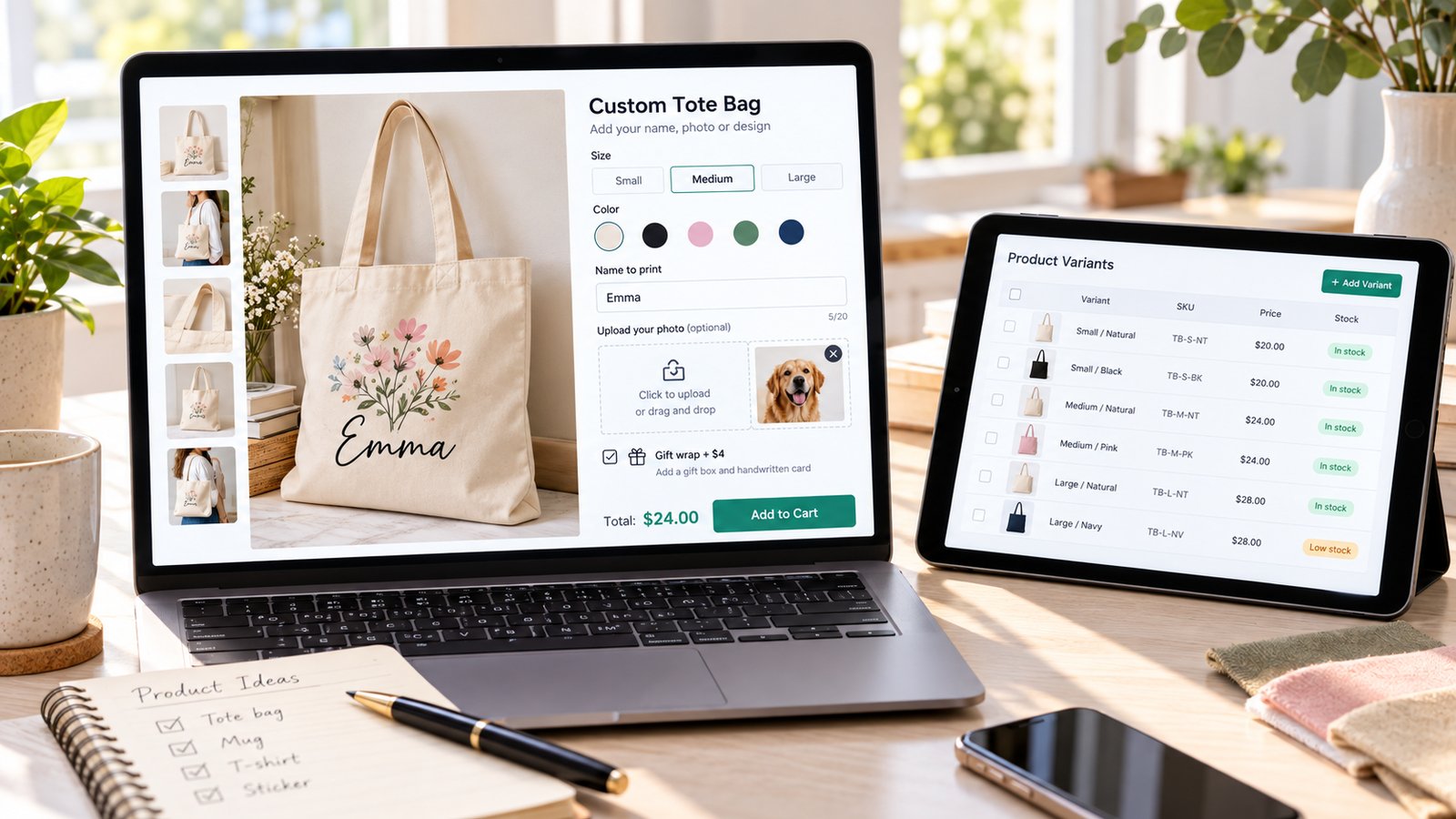
To let customers upload an image on a Shopify product page, use a product personalizer app. With PIMW Product Personalizer, you enable the app embed, build a personalizer on a canvas of your product, add a logo zone where customers upload their photo or logo, set a price for the upload if you like, assign it to your products and add the Personalizer block to your product template. Customers see their image on the product in a live preview, and you download the file from the order. Shopify has no built-in upload button for shoppers. A file field added with theme code works for simple cases, but it has no preview, no image checks and no way to charge for it.
If you only want to upload your own product images to Shopify, that's the first section: open the product in your admin and add images in the Media section. Shopify recommends PNG or JPEG, under 20 MB, and 2048 x 2048 px for square images.
This guide then covers every part of customer image upload in detail: the no-app method and its limits, PIMW Product Personalizer's upload features and setup, pricing, plans, real use cases, photo quality rules from print-on-demand providers, privacy and copyright, and troubleshooting. Facts come from Shopify's Help Center and developer docs, our PIMW Product Personalizer documentation and App Store listing, Printful, Printify, Gelato, Apple, MDN, the UK ICO and the US Copyright Office, checked in October 2026.
Key takeaways
- Shopify has no built-in customer upload button: a theme code file field works but has no preview, checks or pricing; most stores use an app.
- In PIMW Product Personalizer, customers upload into logo zones on a live canvas preview (PNG, JPEG, WebP, SVG, GIF up to 5 MB), on the Pro and Unlimited plans.
- Charge per logo or per step through Shopify's Cart Transform, show the upload only when needed with conditional logic, and download files from the Orders tab.
- Ask for original photos: Printful, Printify and Gelato recommend 150 to 300 DPI at print size; set a retention period and a copyright line for uploads.
Two kinds of "upload image" on Shopify
| You want to | Who uploads | How |
|---|---|---|
| Add product photos to your store | You, the merchant | Shopify admin, product Media section |
| Add an image to a normal page (About, FAQ) | You, the merchant | Shopify admin, page content editor |
| Let shoppers upload a photo or logo to personalize a product | Your customer | A personalizer app (or a basic theme code field) |
The first two are built into Shopify. The third, often called Shopify photo upload or Shopify file upload, needs an app or custom code, and it's what most of this guide is about.
How to upload product images to Shopify (for merchants)

- In your Shopify admin, go to Products and open the product.
- In the Media section, drag your images in, or click to upload them from your computer.
- Drag the images into order. The first image is the one shown on collection pages.
- To show the right photo for each color or size, open a variant and choose its image from the product's media.
- Click an image to add alt text, then Save.
Shopify's image requirements:
- Formats: Shopify says PNG is the best file type for most product images, followed by JPEG. It also accepts TIFF, BMP, GIF, SVG, HEIC and WebP.
- File size: under 20 MB per image.
- Dimensions: up to 5000 x 5000 px (25 megapixels). For square images, Shopify says 2048 x 2048 px usually displays best.
- Consistent shape: use the same aspect ratio for main images so they line up on collection pages.
- How many: a product can have up to 250 media items, and each variant can use one of them.
- Alt text: Shopify says alt text describes the image for customers using assistive technology and when an image can't load. It allows up to 512 characters but recommends 125 or fewer.
Why it matters: in Baymard Institute's product page research, 56% of users' first action was to start exploring the product images, and 25% of e-commerce sites had product images that weren't good enough. For personalized products, show several finished examples with different names and photos.
To add an image to a normal page (such as your About page), go to Online Store > Pages, open the page and use the image button in the content editor.
Ways to let customers upload images on product pages
| Feature | Theme code file field | PIMW Product Personalizer |
|---|---|---|
| Customer photo or logo upload | Yes, basic | Yes (Pro and Unlimited) |
| Live preview on the product | No | Yes, real-time canvas preview |
| Position and size on the product | No | Yes, logo zones you place on the canvas |
| Accepted formats | Whatever you allow in the file picker | PNG, JPEG, WebP, SVG, GIF up to 5 MB |
| Default images to choose from | No | Yes, a default logo library |
| Charge for the upload | No | Yes, per logo or per step |
| Show the upload only when needed | No | Yes, conditional logic (Pro and Unlimited) |
| Front and back views | No | Yes, multi-step flows |
| Find files after the sale | In the order's properties | Orders tab with thumbnails and download links |
| Code needed | Yes | No, app blocks |
Our comparison of Shopify's native file upload vs an options app goes deeper on the trade-offs.
The no-app method: a file field in your theme
Shopify's developer docs say line item properties can capture information like engraving text or let a customer upload a file. Properties are inputs named properties[...], and they must be inside the product form. A file field looks like this:
<label for="your-photo">Upload your photo</label>
<input id="your-photo" type="file" name="properties[Your photo]" accept="image/png, image/jpeg">
It works for simple needs, but know the limits before you rely on it:
- No preview. Customers can't see their photo on the product before they buy.
- No real checks. The
acceptattribute only filters the file picker. It doesn't check resolution, file size or whether the image will print well. - Cart drawers can drop the file. Many themes add products to the cart with JavaScript. Developers in the Shopify Community report that some themes' cart drawers don't send the file this way, so test it with your exact theme.
- No extra charge for the upload, and no positioning, rotating or text on top of the photo.
- Theme updates can overwrite your code changes.
For anything customers pay real money for, an app is safer. Our step-by-step guide to adding photo upload to Shopify covers the code method for Dawn in more depth.
How image upload works in PIMW Product Personalizer
PIMW Product Personalizer is our Shopify app for personalized products. Its upload features are built around a visual editor:
- Canvas editor: you upload a photo of your product as the canvas background, pick an aspect ratio (free, 1:1, 4:5 or 16:9) and place areas on it. What you see is what customers see.
- Logo zones: areas on the canvas where customers upload their own image (a photo, logo or artwork) or pick one from your default library. You drag and resize the zone to the printable area.
- Accepted files: PNG, JPEG, WebP, SVG and GIF, up to 5 MB per upload.
- Default logo library: images you add for customers to choose from, such as designs, frames, icons or clipart: 5 on Basic and 20 on Pro and Unlimited.
- Text areas next to the image: 35+ Google Fonts, bold, italic, underline, alignment, colors and character limits, so a photo mug can also carry a name.
- Multi-step flows: each step is a separate view of the product (for example front and back), with its own canvas, background image, text areas and logo zones. Customers move through the steps as tabs.
- Live preview: customers see their image and text update on the product image as they go.
- Three layouts: a popup, a slide-out drawer or fullscreen, all available on every plan.
- Order management: an Orders tab shows each personalized order with the customer's text, fonts and colors, and thumbnails of uploaded images with download links.
It works with any Online Store 2.0 theme through Shopify app blocks, with no theme code to edit.
Step by step: add image upload with PIMW Product Personalizer

- Install the app from the Shopify App Store. Customer image upload is on Pro and Unlimited, and both have a 3-day free trial.
- Enable the app embed: in your Shopify admin, go to Online Store > Themes > Customize, click App embeds, switch on PIMW Product Personalizer and save. This is the most common reason the widget doesn't appear.
- Create a personalizer: in the app, go to Personalizer > Create New and name it, for example "Photo mug, front and back".
- Set up the canvas: upload a clean photo of your product as the background and choose the aspect ratio.
- Add a logo zone for the customer's image, and drag it over the printable area.
- Add text areas if the product also needs a name or message, with fonts, colors and a character limit.
- Add steps for other views, such as the back of a mug or a t-shirt, each with its own background image and zones.
- Add default images if you want customers to be able to choose a design instead of uploading one.
- Set prices (optional): create the fee product first (see the next section), then add a price to the logo zone or the step.
- Assign the personalizer to your products and set its status to Active.
- Add the Personalizer block to your product template in the theme editor, and set the button label (for example "Upload your photo") and colors.
- Place a test order, open it in the app's Orders tab and download the uploaded image to check it arrives at full size.
Charging for photo and logo uploads
Uploads take work: checking the file, setting it up and sometimes printing a second side. PIMW Product Personalizer lets you charge for it in four ways:
| Pricing type | How it works | Example |
|---|---|---|
| Per logo | A fee for each image uploaded | Logo upload +$5.00 |
| Per step | A flat fee for a step, such as the back | "Back design" +$4.99 |
| Per text | A fee for each text area filled | "Back text" +$3.99 |
| Per choice | Different prices for option choices | "Gold foil" +$5.00 |
Set it up once: on the app's Dashboard, click Create Fee Product. The app creates a hidden $0.01 draft product and configures Shopify's Cart Transform function. Prices won't apply until this shows as Active.
What customers see: prices update as they make choices, and in the cart the product and the add-on fee appear as one line item with the fee shown as a separate detail. That keeps the cart clean.
Show the upload only when customers want it
Not every customer wants to upload a photo. With conditional logic (Pro and Unlimited), you can add a switch such as "Would you like to add your logo?". The Upload your logo field appears only when the customer turns it on, so the page stays simple for everyone else. You set it in the field's Condition settings, choosing which field triggers it and whether any value or one specific choice shows it.
PIMW Product Personalizer plans for image upload

| Plan | Price | Customer image upload | Default images | Steps per personalizer | Conditional logic |
|---|---|---|---|---|---|
| Free | $0 | No | No | 1 | No |
| Basic | $7.99/month | No | 5 | 8 | No |
| Pro | $13.99/month | Yes: up to 3 logo upload steps and 20 customer upload images per personalizer | 20 | 20 | Yes |
| Unlimited | $24.99/month | Unlimited | 20 | Unlimited | Yes |
Every plan includes unlimited custom orders with no per-order fees, the live preview, all three layouts and priority support. Yearly billing saves 20%, and the Free plan needs no credit card.
Which plan do you need?
- Names, monograms and engraving only: Free or Basic.
- One photo or logo per product (photo mug, canvas, pet portrait, logo apron): Pro.
- Front and back uploads, collages or a large catalog: Pro for up to 3 upload steps and 20 images per personalizer, Unlimited for more.
Use cases: products that sell with image upload

| Product | How to set it up | Plan |
|---|---|---|
| Photo mug | Front step with a logo zone for the photo, back step with a name text area; optional fee for the back | Pro |
| Canvas print | Logo zone covering the canvas face, size as Shopify variants, preview showing the crop | Pro |
| T-shirt or hoodie | Front and back steps, each with a logo zone; per-step price for the back print | Pro |
| Pet portrait or pet blanket | Logo zone for the pet photo, pet name text area, background color choices | Pro |
| Photo collage blanket | Several logo zones in a grid layout | Pro or Unlimited |
| Logo apron, tote or cap | Logo zone plus a default logo library for customers without artwork; per-logo fee | Pro |
| Photo ornament | Round logo zone, name and year text areas | Pro |
| Phone case or tumbler | Logo zone sized to the print area, name text area | Pro |
| Business stamps and signs | Logo upload switch with conditional logic, business name text area | Pro |
Our product guides go into each one: selling custom canvas prints, custom t-shirts, custom blankets, personalized aprons, personalized picture books and custom rubber stamps, plus our ranking of the best print-on-demand mugs.
Photo quality: get files that print well

Low resolution is the biggest cause of disappointed customers. Here is what the main print-on-demand providers ask for:
| Provider | Resolution guidance |
|---|---|
| Printful | At least 150 DPI for most products; 300 DPI for phone cases and stickers; its blog recommends 300 DPI for detailed small products like mugs |
| Printify | 300 DPI recommended; large items such as blankets and tapestries work at 120 to 150 DPI |
| Gelato | Minimum 150 DPI, and 300 DPI for the best print quality, at final print size |
Do the pixel math. Pixels needed = print size in inches x DPI.
| At 150 DPI | At 300 DPI | |
|---|---|---|
| 12 x 16 in t-shirt front | 1800 x 2400 px | 3600 x 4800 px |
| 8 x 10 in canvas | 1200 x 1500 px | 2400 x 3000 px |
| 3.5 x 3.5 in photo ornament | 525 x 525 px | 1050 x 1050 px |
Phone photos are usually big enough, screenshots aren't. Apple says iPhone 15 Pro introduced a 24-megapixel default for photos, and recent iPhones can capture 48 MP. A full-size phone photo easily covers a mug or a t-shirt front. The problem is copies: screenshots, photos saved from social media or messaging apps, and heavy crops. Tell customers to upload the original photo.
File formats:
- PNG supports full transparency, so it's best for logos on colored products. Printful recommends PNG because a JPEG without a transparent background may print with a white box.
- JPEG is fine for photos but doesn't support transparency.
- SVG is a vector format, ideal for logos because it scales without losing quality.
- iPhone HEIF photos: Apple's High Efficiency format saves space, but it isn't in PIMW Product Personalizer's accepted list (PNG, JPEG, WebP, SVG, GIF). Apple says photos shared by email or Messages may be converted to a more compatible format like JPEG, and customers can switch the camera to Most Compatible in Settings > Camera > Formats. Mention this in your help text.
Our guide to the file formats to accept for custom uploads has the full list, and our list of the most common photo upload mistakes covers the rest.
Privacy and copyright for customer uploads
Customer photos can be personal data. Under UK GDPR, personal data is any information relating to an identified or identifiable person, so a photo of a customer's family is likely to count. The ICO's storage limitation principle says you must not keep personal data longer than you need it. Set a retention period for uploaded photos (for example, delete them a few months after the order ships, once returns and reprints are done), say so in your privacy policy, and delete files on schedule.
Customers need the right to use the image. The US Copyright Office says a work is under copyright as soon as it's created and fixed in a tangible form, and that copyright belongs to the author, not to whoever owns a copy. A photo a customer found online usually belongs to someone else. So:
- Add a line next to the upload field: "By uploading, you confirm you own or have permission to use this image."
- Refuse orders with obvious brand logos, characters or celebrity photos.
- Know the process: Shopify complies with the Digital Millennium Copyright Act (DMCA) and generally removes content after a valid infringement notice, and it can close stores for repeated or willful infringement.
Our guide to handling copyright on customer-uploaded images explains the details.
Troubleshooting image upload
| Problem | Fix |
|---|---|
| The Personalize button or upload field doesn't show | Check, in order: the app embed is on, the Personalizer block is in the product template, a personalizer is assigned to the product, its status is Active, and desktop/mobile visibility is on |
| The upload fee isn't charged | Create the fee product on the Dashboard, check Cart Transform shows Active, and check the price is above $0 |
| The uploaded image is missing from the order | Make sure the customer finished the personalization flow; temporarily turn off other apps that change cart line items |
| Customers can't upload an iPhone photo | Ask them to upload a JPEG or PNG; see the HEIF tip above |
| The file is rejected as too large | PIMW Product Personalizer accepts files up to 5 MB; ask for a JPEG instead of a very large PNG |
| Prints come out blurry | Ask for original photos and show the minimum size in your help text |
| A theme code file field loses the file | Test with your theme's cart drawer off, or switch to an app |
Your Shopify image upload checklist
- Upload your own product photos: PNG or JPEG, under 20 MB, about 2048 x 2048 px for square images, with alt text.
- Decide which products need customer uploads and where the image prints.
- Install PIMW Product Personalizer and choose Pro or Unlimited for customer uploads.
- Enable the app embed and build a personalizer with a logo zone on a photo of your product.
- Add text areas, steps for other sides and default images where useful.
- Create the fee product and set per-logo or per-step prices.
- Use conditional logic to show the upload only when customers want it.
- Add help text: accepted formats, original photos only, and a copyright line.
- Set a retention period for uploaded photos in your privacy policy.
- Place a test order and download the file from the Orders tab.
A photo upload turns a standard product into a gift only your customer could have made. Set it up once, test it with a real order, and every product page can become a personalized one.
Frequently asked questions
How do I let customers upload an image on a Shopify product page?
Use a product personalizer app. In PIMW Product Personalizer, enable the app embed, build a personalizer with a logo zone on a photo of your product, assign it to products and add the Personalizer block to your product template. Customer image upload is on the Pro and Unlimited plans.
Does Shopify have a built-in customer image upload?
No. Shopify's line item properties can capture a file through a file input in your theme's product form, but there's no preview, no image check and no extra charge, and some themes' cart drawers don't send the file. Most stores use an app instead.
How do I upload product images to Shopify?
Open the product in your Shopify admin, add images in the Media section, drag them into order, add alt text and save. Shopify recommends PNG or JPEG under 20 MB, up to 5000 x 5000 px, and 2048 x 2048 px for square images.
What file types can customers upload in PIMW Product Personalizer?
PNG, JPEG, WebP, SVG and GIF, up to 5 MB per upload. iPhone photos saved in Apple's HEIF format should be shared or saved as JPEG first.
Can I charge extra for a photo or logo upload on Shopify?
Yes. PIMW Product Personalizer supports per-logo and per-step pricing through Shopify's Cart Transform. Create the fee product on the app's Dashboard first, then set a price on the logo zone or step.
What resolution should customer photos be?
Printful asks for at least 150 DPI for most products and 300 DPI for small detailed ones, Printify recommends 300 DPI, and Gelato says 150 DPI minimum and 300 DPI for the best quality. Multiply the print size in inches by the DPI to get the pixels needed.
Where do I find the customer's uploaded image?
In PIMW Product Personalizer's Orders tab. Each personalized order shows the customer's text, fonts and colors, plus thumbnails of uploaded images with download links.
Keep exploring

Sources & further reading
Primary sources referenced in this article. We link to official platform documentation and standards bodies rather than secondary summaries so you can verify claims directly.
- Shopify Help Center: Product media types and image requirements
- Shopify Help Center: Variants and variant media
- Shopify Dev Docs: Product template and line item properties
- Shopify Dev Docs: Line item properties
- Shopify Community: Image upload line item properties in 2.0 themes
- Shopify Dev Docs: Theme app extensions (app blocks)
- Shopify App Store: PIMW Product Personalizer (features and plans, October 2026)
- PIMW Product Personalizer documentation (canvas, logo zones, pricing, orders, plans)
- Shopify Help Center: Add alt text to product media
- Baymard Institute: Image resolution and zoom (2020)
- Printful: Creating a print file (DPI)
- Printful: Preparing the perfect print file
- Printify Help Center: File requirements
- Gelato: Design file guidelines
- Apple Newsroom: iPhone 15 Pro (24MP default)
- Apple Support: HEIF/HEVC media on iPhone
- MDN: Image file type and format guide
- ICO: Storage limitation principle
- US Copyright Office: Who owns copyright
- Shopify Help Center: Copyright policy (DMCA)